
User Guides
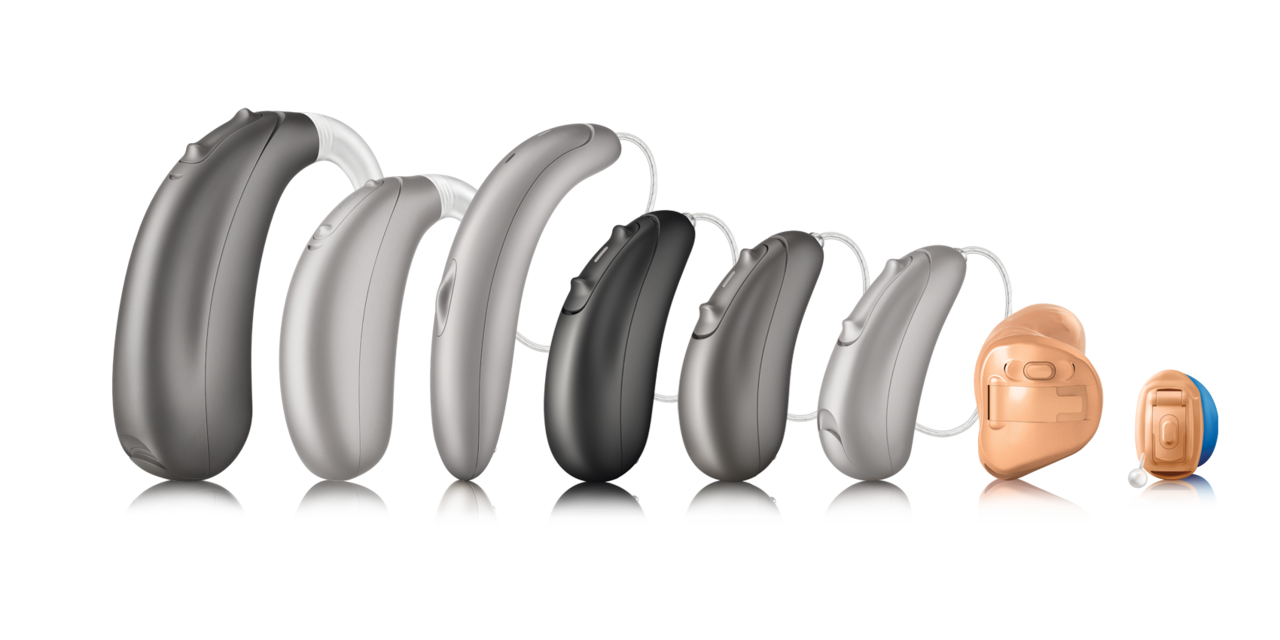
Every Unitron hearing aid is designed to fit seamlessly into your life — and we want to make sure you get the most from yours. Here, you’ll find detailed user guides for each of our hearing aid products. From initial setup to everyday care, these manuals provide step-by-step instructions and helpful tips specifically tailored to your device. Whether you’re new to hearing aids or upgrading to the latest technology, our guides are here to ensure you feel confident and supported every step of the way.
Select product category and find your guide for your device
Popular products
Popular questions and topics
To pair the iPhone to the Unitron Bluetooth hearing aids to make phone calls and stream media, follow these steps:
- Go to your iPhone home screen and tap on the Settings icon
- In the settings menu, tap on the Bluetooth icon
- Tap on the slider button next to Bluetooth to turn Bluetooth On
- Open both battery doors of the hearing aids for 5 seconds and then close to turn them back on. If you have a hearing aid without a battery door, first, turn off each hearing aid by pressing the lower part of the button until the LED turns red (4 sec). Then turn on each hearing aid by pressing the same button until the LED turns green (2 sec)
- After several seconds, the name of the hearing aids will appear on the iPhone screen. Tap on it to select
- You will now see a message Bluetooth Pairing Request. Click Pair or Ok
- A connection beep will be heard in the paired hearing aids
Your iPhone is now connected to your hearing aids.
You can download the Unitron Remote Plus app from the Apple App Store for iPhones or the Google Play Store for Android devices. The app allows you to control your compatible Unitron hearing aids, customize sound settings like volume and noise reduction, and select listening programs.
To setup the TV Connector for the Bluetooth wireless hearing aids, please follow these steps carefully:
- Remove the TV Connector from the packaging. Insert the micro USB end of the USB cable into the port on the backside of the TV Connector
- Connect the larger end of the USB cable to the power supply
- Insert the power supply into your wall socket
- Insert the other end of the audio cable into the AUDIO OUT port of your TV
- Once connected to power, the LED turns green to indicate that it is ready to stream
- When the TV Connector is plugged into a power source for the very first time, ensure the hearing aids are switched on and within a 1 meter radius to allow automatic connection. Once connected, the hearing aids will play a confirmation tone.
Congratulations! Your hearing aids are now connected to the TV Connector.
If the hearing aids do not light up, or a solid red light is shown on the hearing aids, the hearing aids are not charging.