
Phone compatibility
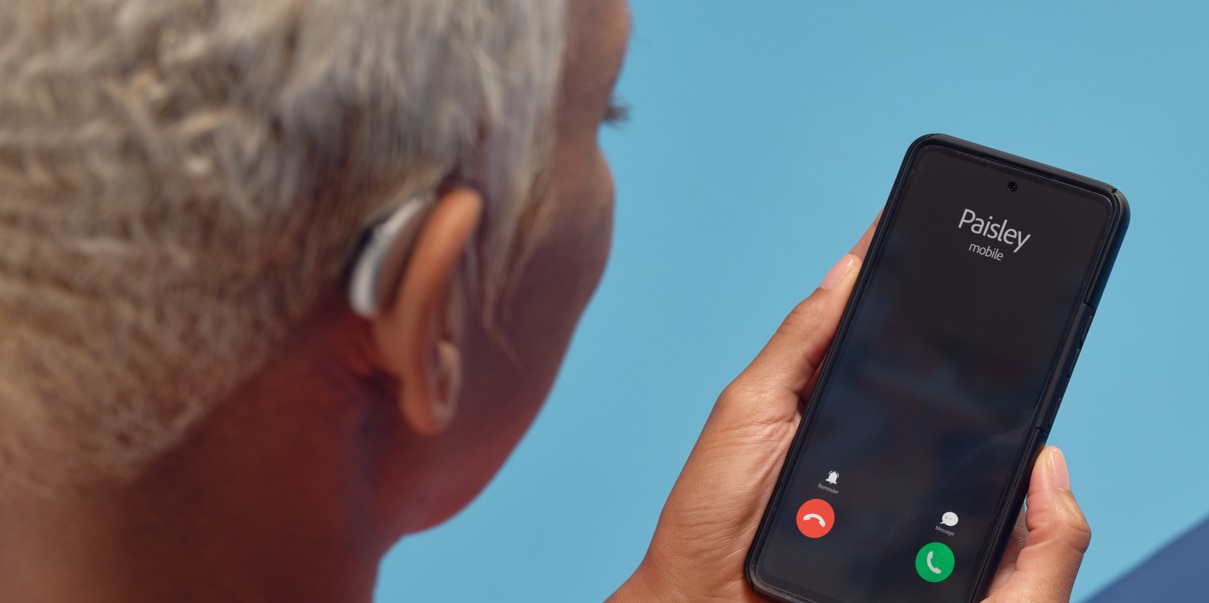
Check if your phone is compatible with your hearing aids. Find essential device requirements and ensure a smooth setup for an optimal user experience.
- Phone compatibility
- FAQ
Phone compatibility
Enter the phone model to check its compatibility with Unitron hearing aids.
Frequently asked questions
There are two main ways to establish connection between the Android smartphone and the Bluetooth hearing aids.
Is Bluetooth currently activated on the smartphone?
There are two ways to do this depending on the Android smartphone model:
Option 1:
- Swipe down from the top of the screen to bring up the Notification Center
- Swipe down on the Notifications Center to reveal the Quick Settings menu
- Verify the Bluetooth symbol is highlighted, if not, tap to activate Bluetooth
Option 2:
- From the home screen, navigate to Bluetooth settings
- Verify the slider button next to Bluetooth is switched to ON
- If not, tap the slider button to activate Bluetooth
Is there a fresh battery in the hearing aid or is the hearing aid charged?
Hearing aids with batteries
- Replace the battery
- Close the battery door to place the hearing aid in pairing mode
- The hearing aid will be in pairing mode for three minutes
- Follow the pairing process to connect your hearing aids to your Android smartphone
Hearing aids without batteries
- Ensure your hearing aids are charged. We recommend charging for 3 hours prior to pairing
- Turn the hearing aid off and then back on to place the hearing aid in pairing mode
- The hearing aid will be in pairing mode for three minutes
- Follow the pairing process to connect your hearing aids to your Android smartphone
There are multiple ways to change the volume of a phone call when using the Bluetooth hearing aids:
- Using the volume control buttons on the mobile phone to adjust the call volume
- The push button on the Bluetooth hearing aids themselves can be configured to adjust volume
For Smile hearing aids, when streaming a phone call, volume adjustments in the Remote Plus app will impact the volume of the streamed sound.
To ensure incoming calls are routed to the Bluetooth hearing aids, calls should be answered using the push button on the hearing aids.
- Go to the Android phone’s home screen and navigate to the Bluetooth settings page (this varies depending on the smartphone model)
- Tap on the slider button to turn Bluetooth on
- Open the battery door of the Bluetooth hearing aids for 5 seconds and then close the battery doors to turn the hearing aids back on. If you have a hearing aid without a battery door, first, turn off each hearing aid by pressing the lower part of the button until the LED turns red (4 sec). Then turn on each hearing aid by pressing the same button until the LED turns green (2 sec).
- A message will appear - Available Devices
- After several seconds, the name of the hearing aids will appear. Tap to select it.
- A message will appear - Bluetooth Pairing Request. Click Ok
- A connection beep will be heard in the paired hearing aid
The Android smartphone is now connected to the hearing aids.
To pair the iPhone to the Unitron Bluetooth hearing aids to make phone calls and stream media, follow these steps:
- Go to your iPhone home screen and tap on the Settings icon
- In the settings menu, tap on the Bluetooth icon
- Tap on the slider button next to Bluetooth to turn Bluetooth On
- Open both battery doors of the hearing aids for 5 seconds and then close to turn them back on. If you have a hearing aid without a battery door, first, turn off each hearing aid by pressing the lower part of the button until the LED turns red (4 sec). Then turn on each hearing aid by pressing the same button until the LED turns green (2 sec)
- After several seconds, the name of the hearing aids will appear on the iPhone screen. Tap on it to select
- You will now see a message Bluetooth Pairing Request. Click Pair or Ok
- A connection beep will be heard in the paired hearing aids
Your iPhone is now connected to your hearing aids.