
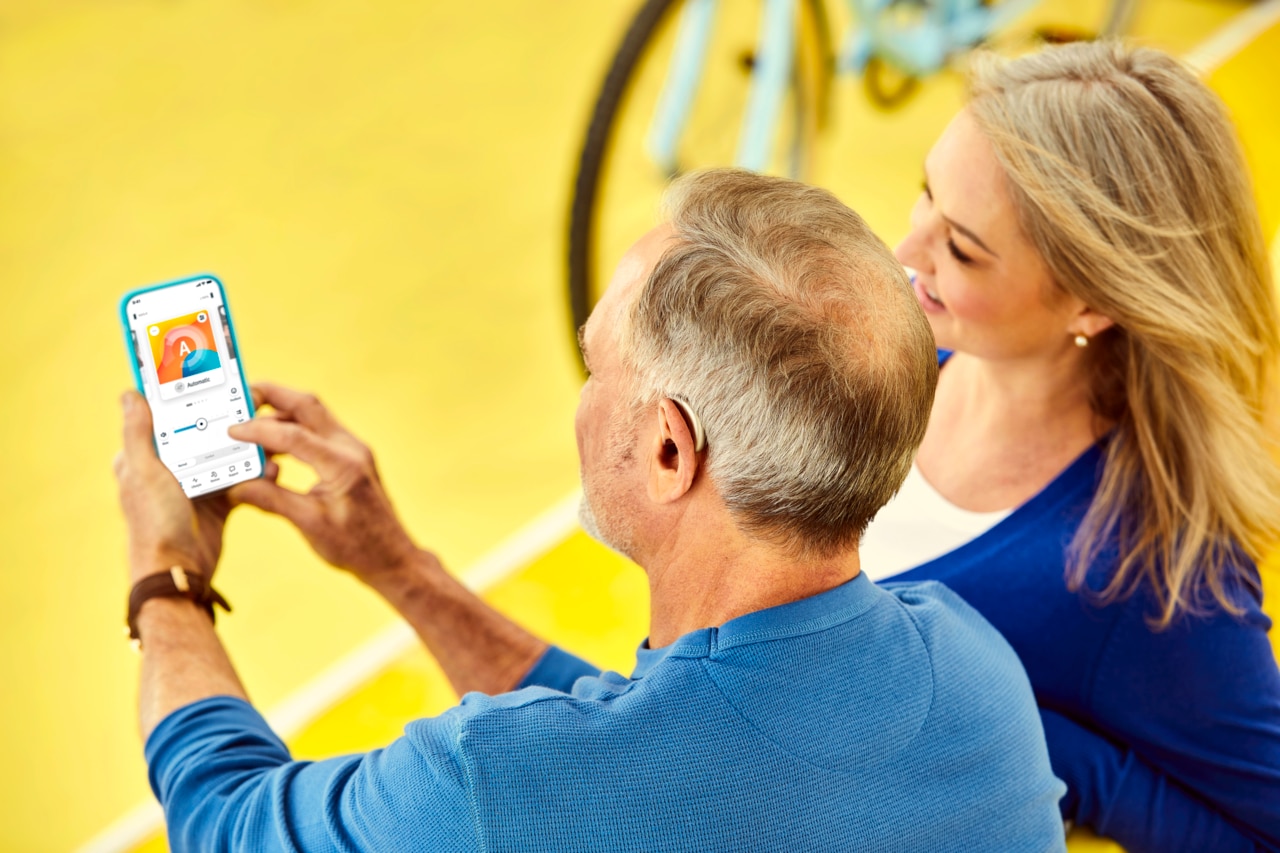
Connecting to the Remote Plus app
Discover how to connect seamlessly with our Remote Plus app and ensure a smooth experience.
For Smile hearing aids, when streaming a phone call, volume adjustments in the Remote Plus app will impact the volume of the streamed sound.
For Vivante and prior hearing aids, when streaming a phone call, the hearing aids cannot connect to the app while the phone call is active.
No. Unitron Remote Plus app only works with iOS or Android smartphones supporting Bluetooth LE (Low Energy).
The minimum requirements for smartphones:
- iOS version 15 or newer and Bluetooth version 4.2 or newer
- Android version 8.0 or newer and Bluetooth version 4.2 or newer
No. To use the Remote Plus app, simply follow the pairing instructions when you open the app. However, if you wish to hear phone call audio or stream media through your hearing aids, you will need to pair your heading aids directly through your smartphone’s Bluetooth settings.
The Unitron Remote Plus app has an easy to follow walk through when you open the app for the first time. Simply follow the steps to pair your hearing aids with your smartphone.
If the Remote Plus app does not connect to the Bluetooth hearing aids, try:
- Rebooting the hearing aids by opening the battery door, waiting 5 seconds and closing the battery door again. If you have a hearing aid without a battery door, first, turn off each hearing aid by pressing the lower part of the button until the LED turns red (4 sec). Then turn on each hearing aid by pressing the same button until the LED turns green (2 sec).
- Delete the paired hearing aids from your smartphone, then pair them again with your smartphone.
Reboot the mobile phone, then pair the hearing aids again via the Unitron Remote Plus app.